Sign in to your workspace
Not included in DVARA Open Source.
Every governance action in DVARA — every policy you draft, every credential you rotate, every PII setting you change — runs under the identity you sign in with, and lands in the tamper-evident audit trail with your email on it. Before you start, sign in, confirm the role you have, and check that your data plane is reachable.
Sign in for the first time after an invitation
The first time you reach your workspace is through an invitation email sent by your operator or by another workspace admin on your team. The email contains a one-time link to your DVARA Flightdeck — https://<your-flightdeck-host>/register?token=<uuid>.
- Open the link. The token is valid for 7 days from when it was issued.
- Pick a password (your password manager is the right place to store it).
- Submit the form. You're redirected to
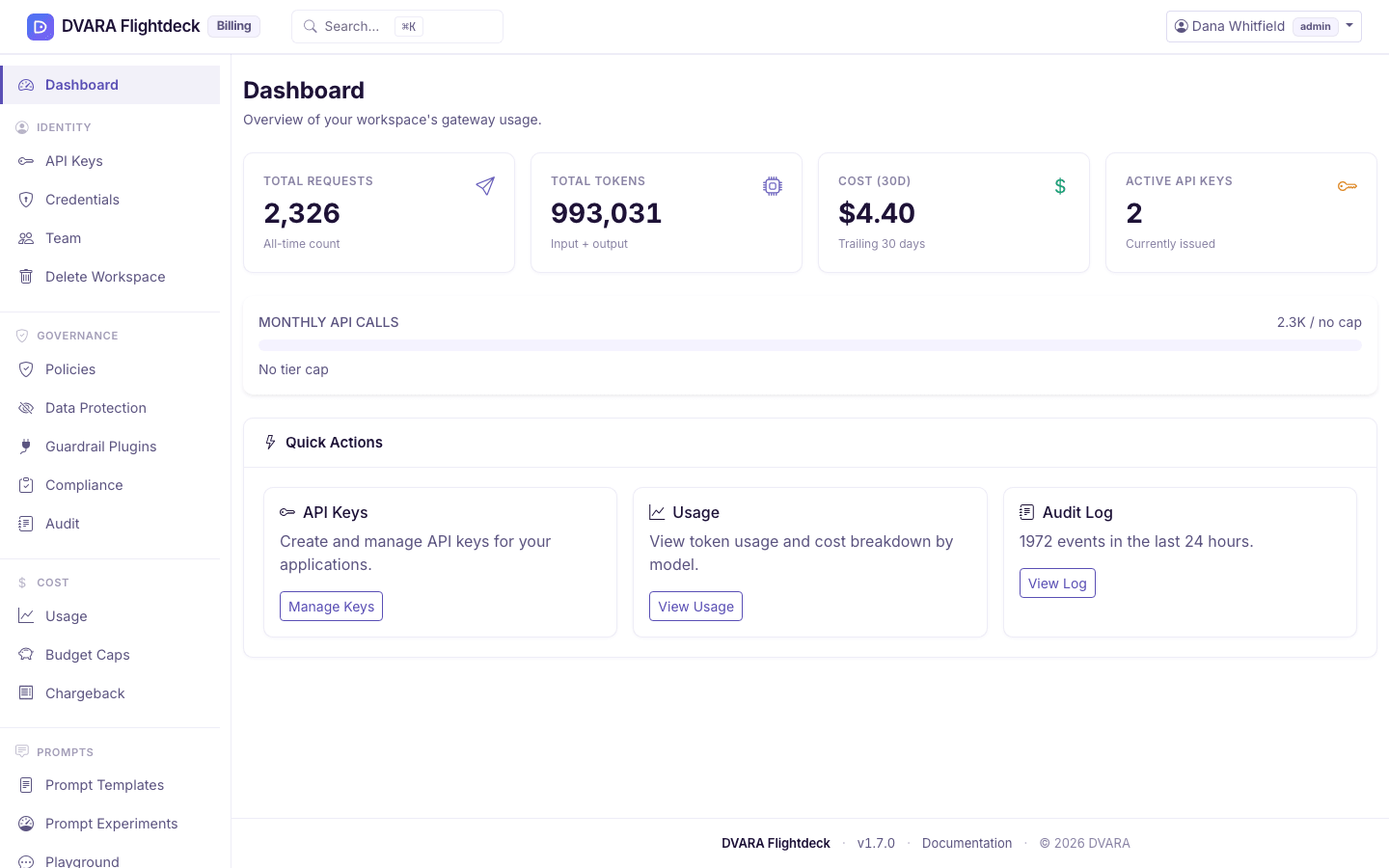
/login?registered=true. Sign in with the same email and password. - After sign-in, Flightdeck opens your workspace home. Platform-wide navigation is visible only to the roles that operate DVARA across workspaces.
If the link is older than 7 days or has already been used, the page shows "this invitation link is invalid or has expired" — there is no self-service resend. Ask the person who invited you to issue a new one.
Sign in if you already have an account
Open your DVARA Flightdeck sign-in page (https://<your-flightdeck-host>/login), enter your email and password, and submit. Five consecutive failed attempts lock the account for 15 minutes; if you forget your password use the Forgot password? link on the same page and follow the email reset link.
A successful reset ends all existing Flightdeck sessions, revokes every
active personal access token, and writes PASSWORD_RESET. Sign in with the new
password and create replacement tokens if an integration still needs one.
What you see depends on your role
Every user in your workspace carries exactly one of three workspace roles:
| Role | What you can do |
|---|---|
admin | Everything in Flightdeck, including inviting and removing teammates, changing PII and guardrail posture |
developer | Create API keys, add and rotate provider credentials, write prompts, configure webhooks and MCP servers, run reports. Can read policies but not change them, and cannot remove teammates or change PII/guardrail posture |
viewer | Read-only across the workspace — useful for auditors and observers |
A user who carries a platform role (owner, policy-admin, billing-admin) on the same install is an operator of DVARA, not a workspace user. They sign in to the same Flightdeck and see the platform-wide navigation. Your workspace will never show platform roles in the team list.
Verify the gateway is connected before you act
Open System Status near the top of the sidebar, just below Dashboard. It shows whether Flightdeck can reach the gateway (the data plane):
- Operational — the data plane is healthy. Token usage, cost, and live MCP activity refresh on every page load.
- Degraded — the gateway answers, but something in it is not healthy.
- Unavailable — Flightdeck cannot reach the data plane right now.
What still works when the gateway is unavailable
Flightdeck stores configuration separately from the data plane. Even when System Status shows Unavailable:
- API keys, provider credentials, budgets, policies, webhooks, MCP server registrations, prompt templates, the team list, and the audit log itself all still load and accept changes. Every audit event still lands in the tamper-evident trail.
- Token usage, cost figures, and MCP activity will not refresh — those numbers are produced when the data plane processes calls, so they stall at the last value the data plane delivered.
- New
/v1/*requests from your applications will fail until the data plane comes back. System Status showing Operational again is the signal to redrive any traffic you held.
What to do when the gateway stays unavailable
If System Status shows Unavailable for more than a few seconds, that is unusual. The most common causes:
- The platform operator is rolling out a release — wait a minute and reload.
- Flightdeck is configured with the wrong data-plane URL. Ask the operator who set up DVARA to check the gateway URL Flightdeck uses against the Gateway URL used by your SDKs.
- The network blocks outbound HTTPS from Flightdeck to the Gateway. This is the usual cause on self-managed installations.
What happens behind the scenes
Built-in email/password authentication writes LOGIN_SUCCESS or LOGIN_FAILED. OIDC and SAML write AUTHENTICATION_SUCCESS or AUTHENTICATION_FAILURE instead; build alerts around the pair used by your authentication mode. After five consecutive built-in failures the account is locked for 15 minutes and writes ACCOUNT_LOCKED. Accepting an invitation does not emit a dedicated event; the inviter's USER_INVITED event is the invitation record.
Next steps
Now that you can reach Flightdeck and know your role: