Cap your spend and generate chargeback reports
Not included in DVARA Open Source.
Cost governance in the DVARA Flightdeck is two pages, working together. Budgets decide what happens when spending crosses a threshold; chargeback reports are how your finance team gets the line-item breakdown they need at month-end.
Sign in as a workspace admin. Developers and viewers can inspect budgets but
cannot create, edit, delete, or approve them. Budgets evaluate every data-plane
request, so System Status must show Operational for new caps to bind.
Read the budget caps that govern your workspace
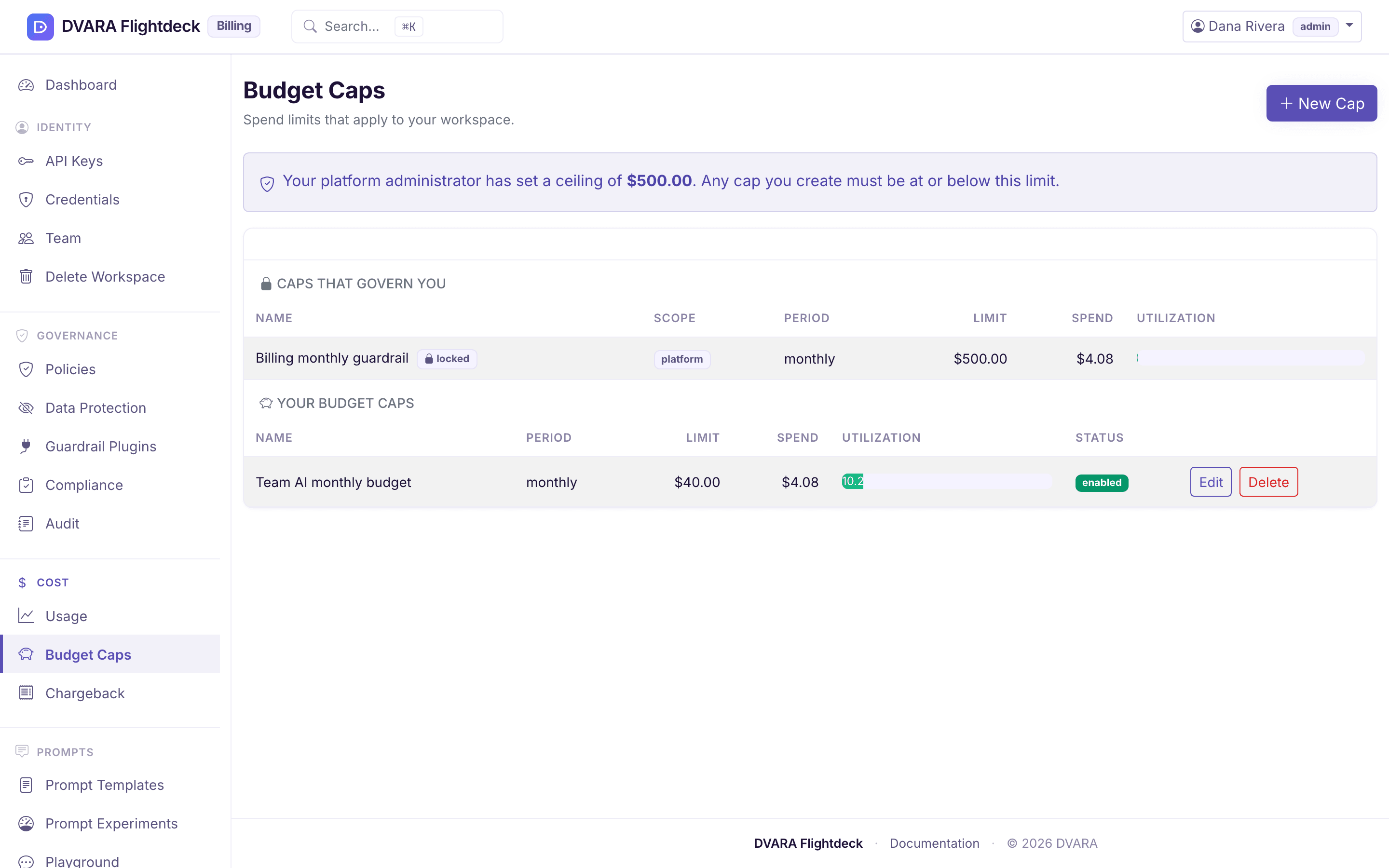
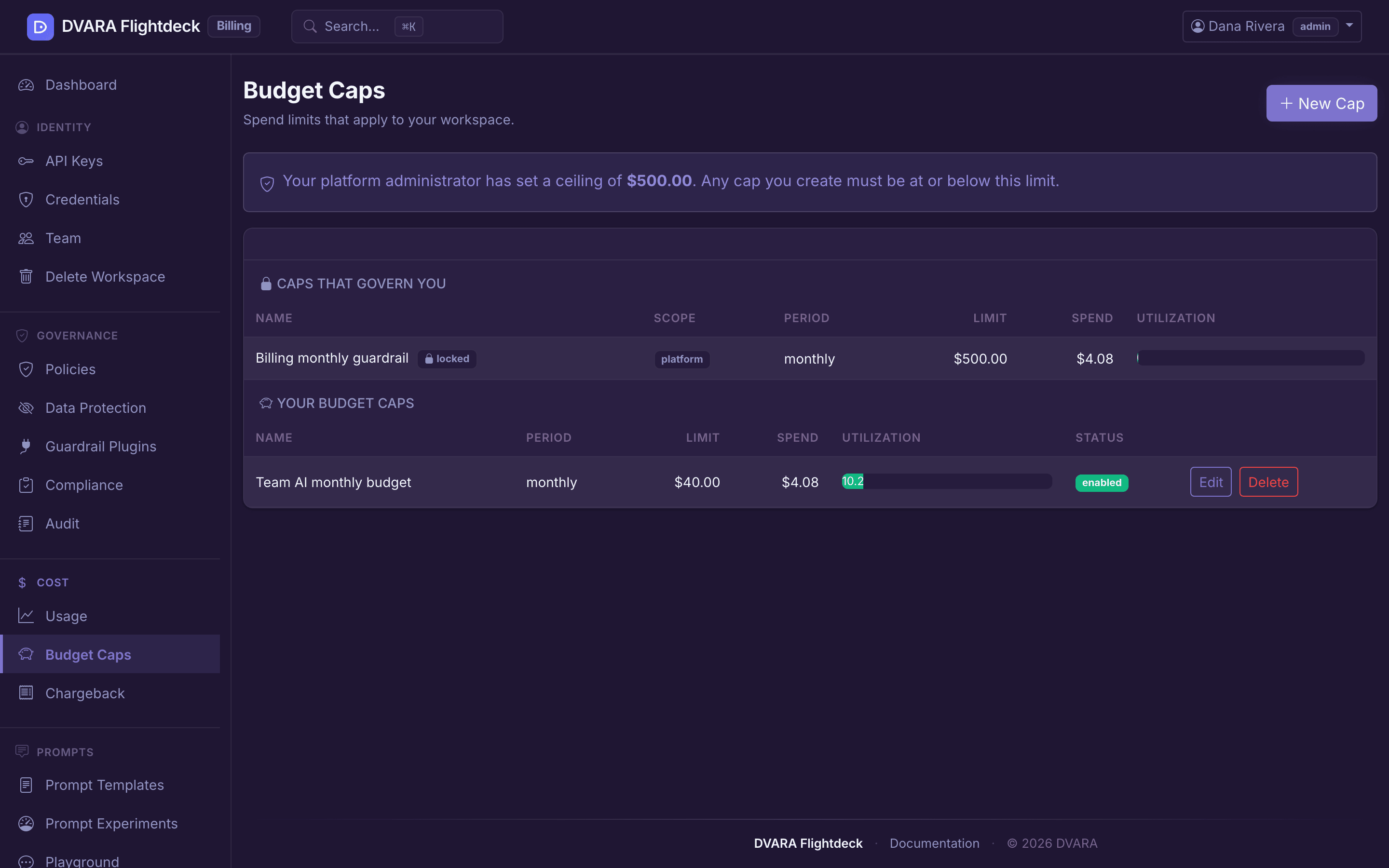
Open Cost → Budget Caps in Flightdeck. The list shows every cap that applies to your workspace, in two flavours:
| Provenance | Who sets it | Can you change it? |
|---|---|---|
PLATFORM | The operator who runs DVARA | No — read-only, shown with a lock badge |
TENANT | A workspace admin, from this page | Yes, for a workspace admin |
Operator-set PLATFORM caps that govern your workspace are read-only here (shown with a lock badge); your own TENANT caps must sit at or below the tightest applicable PLATFORM cap.
Each cap has a period (DAILY, WEEKLY, MONTHLY), a limit in USD, an optional soft limit as a percentage of the hard limit, and an enabled flag.
Add a workspace cap (you can only tighten, never loosen)
- Click New Cap.
- Pick a period and a USD limit. If the operator has set a ceiling cap on your workspace, your cap must be at or below it — you can tighten spend, you cannot escape an operator-imposed ceiling.
- Optional: set a soft limit (typical is
80%). Spend crossing the soft limit fires an alert but does not block traffic; spend crossing the hard limit rejects calls. - Submit the cap and a reason for approval.
- Ask a different workspace budget manager to review it under Agents → Approvals, in Governance requests.
- After approval, return and create the exact cap before the 15-minute approval expires.
When no operator ceiling exists, your cap stands on its own. Budget evaluation is tightest-wins: the most restrictive enabled cap that matches a request governs that request's spend.
Creating or deleting a cap always needs two-person approval. Changing its period, hard limit, or enabled state does too; changing only its name or soft limit does not. The separate review keeps one workspace user from quietly removing or weakening a financial control. Approval covers the exact submitted values, so a cap changed in another session needs a new request.
Track current period spend
Each row shows period-to-date spend versus the hard limit, with a progress bar. The numbers update on every data-plane response — they're a near-real-time view of where you are in the period. Cross the soft limit and the row turns amber; cross the hard limit and it turns red. New calls fail with BUDGET_CAP_HARD (HTTP 402 Payment Required) until the period resets.
Generate a chargeback report
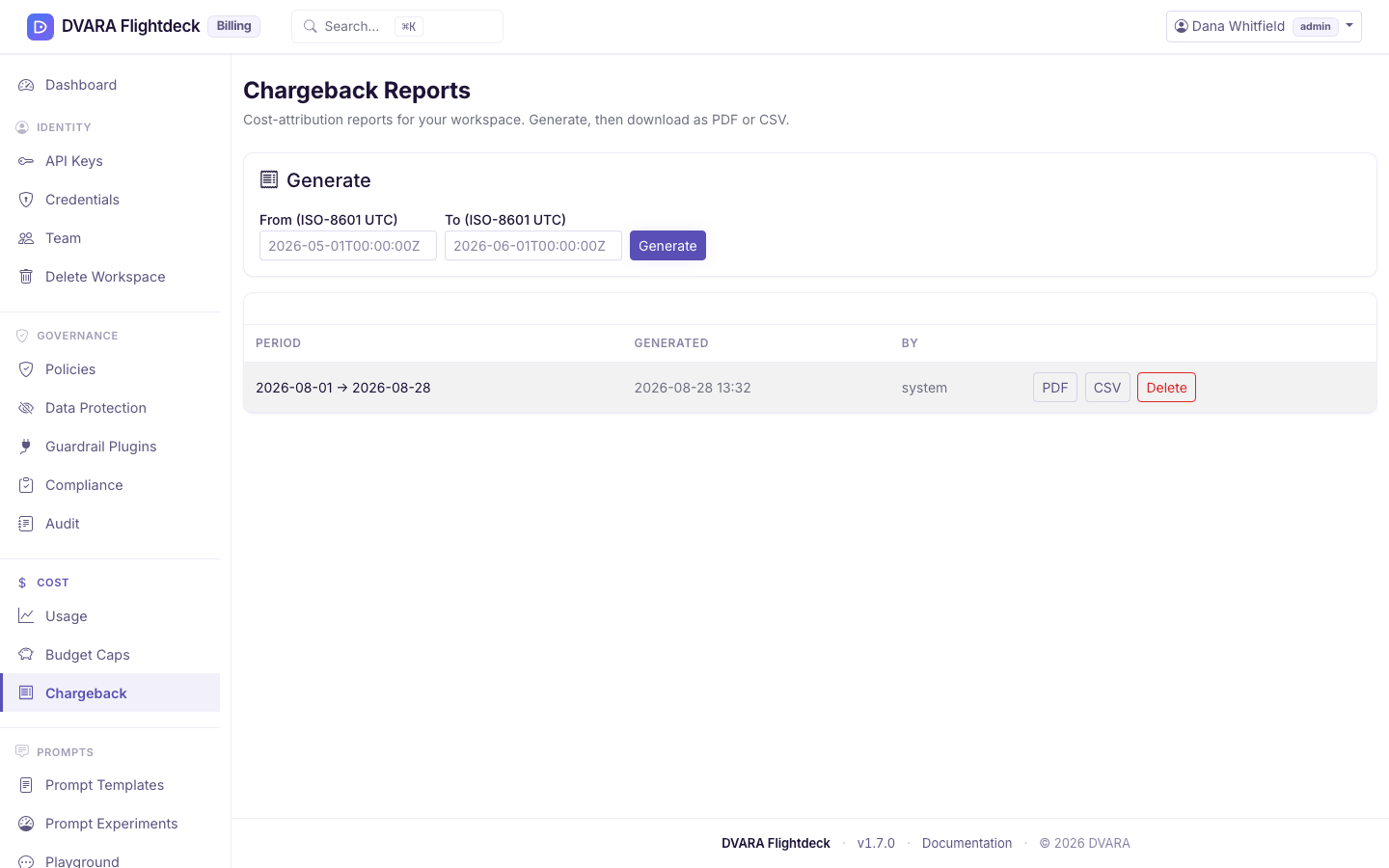
Open Cost → Chargeback. In the Generate panel, pick From and To (both required, in your browser's time zone), and select Generate. The report aggregates your workspace's spend by model, provider, API key, and any cost tags your applications passed along with their requests. API-key groups use the same opaque ID as usage, cost, budgets, and audit evidence; no bearer credential enters the report. It is a full snapshot — once generated, the numbers cannot drift.
Download PDF or CSV
Every generated report has a PDF download (formatted, ready to email a finance team) and a CSV download (line items for a spreadsheet or BI tool). Both downloads are read-only and not audited.
From 1.8.5 the model summary, and its CSV, add input, output, cached-input, cache-write and reasoning tokens as trailing columns. A spreadsheet keyed on column position keeps working. Each part is inside its total, so no total changes.
The list marks a report Completed while its PDF and CSV are available. By
default a report stays downloadable until it is deleted. If your operator set
dvara.flightdeck.reports.retention-days, reports older than that are deleted;
a download then returns 410 Gone and the row shows Expired. Generate a new
report for the same workspace and date range instead of reusing the expired ID. Report IDs are workspace-scoped,
and download filenames use safe report, workspace, date, and extension parts.
An admin can delete a report earlier.
Turn the response cache on or off
Cost → Cache sets your workspace's response cache. Only a workspace admin sees this page. The cache is off until you turn it on here.
- Use the response cache turns it on or off.
- Max entries, Keep each entry (seconds) and Similarity threshold (0–1) are optional. Leave one empty to use the gateway's default, which the form shows.
- Models to cache takes model patterns, one per line or separated by commas, with
*and?as wildcards. Empty means every model.
What the cache saved shows the last 24 hours and 7 days: hit rate, hits, tokens served from the cache and the
estimated cost saved. A change reaches the gateways on the config bundle, like any workspace setting, and writes
WORKSPACE_CACHE_CONFIG_UPDATED. See Response caching for what the cache keys on and
when it serves.
See what your workspace could save
From 1.12.0, Cost → Cost Advisor shows your workspace's own suggestions to spend less: a cheaper model, turning on the response cache, or a large system prompt sent on every call. Each says what it would save a month, from your last 30 days of billed calls. Only a workspace admin sees this page. Fleet-wide suggestions, such as routing by tier, are for the platform owner.
- Apply turns on the response cache, keeping your other cache settings. The other kinds say what to change.
- Dismiss asks for a reason. It stays dismissed for 90 days, unless its saving doubles.
See Cost Advisor for how each suggestion is found and priced.
Check cheaper models on your traffic
A cheaper model saves money only if its answers are as good. Turn on Check cheaper models to let the Gateway test it on your own requests:
- After an answer has gone back to your application, the Gateway sends a small sample of requests (2%, at most 200 a day on each Gateway) to the cheaper model the advisor suggests. The request goes through the same policies, PII rules and guardrails as any other.
- A judge model compares the cheaper answer with the one you were served.
- Only the verdict is kept: the two models, the score and whether quality held. No text of the request or either answer is stored.
These calls are billed to your workspace, up to Spend at most a month ($10 if you leave it empty), and never
change an answer. Most checks a day sets the daily maximum. Checking needs a judge model: your workspace's
eval.judge.model, or the Gateway's default. After 30 checks the suggestion shows Validated when quality held in
at least 90% of them.
What every action writes to the audit trail
| Action | Audit event |
|---|---|
| Create a workspace cap | BUDGET_CAP_CREATED (carries managed_by: TENANT) |
| Edit a workspace cap | BUDGET_CAP_UPDATED |
| Delete a workspace cap | BUDGET_CAP_DELETED |
| Cross the soft limit | BUDGET_CAP_SOFT (deduplicated within a cooldown window) |
| Cross the hard limit | BUDGET_CAP_HARD (one event per blocked request) |
| Generate a chargeback report | CHARGEBACK_REPORT_GENERATED |
| Delete a chargeback report | CHARGEBACK_REPORT_DELETED |
| Change the response cache settings | WORKSPACE_CACHE_CONFIG_UPDATED |
| Apply a Cost Advisor suggestion | ADVISOR_APPLIED |
| Dismiss a Cost Advisor suggestion | ADVISOR_DISMISSED |
| Turn checking cheaper models on or off, or change its limits | WORKSPACE_ADVISOR_CONFIG_UPDATED |
| A cheaper-model check finishes (written by the Gateway) | ADVISOR_COMPARED |
Report downloads are deliberately not audited — they read a file that was already produced and audited at generation time.